At the start of the certification process, you create a system certificate request that you must send to PROXESS GmbH. Two files are generated during the creation of the system certificate request. The file with the extension req contains the certification request. The file with the extension pvk contains a private key. This contains the main cryptographic secret of the smartcard creation and may not fall into the hands of third parties, including those of PROXESS GmbH. The request is also issued as a paper printout.
Step by step:
Start the PROXESS Administrator Console and mark the branch “PROXESS Administrator” in the console root. In the “Actions” menu, click “Certificates” and select the command Request PROXESS system certificate.
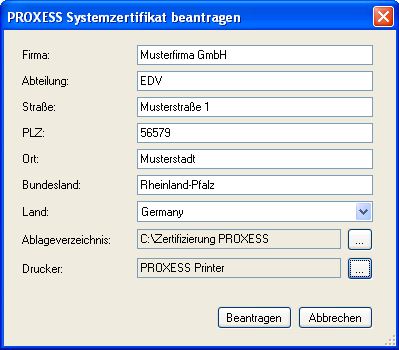
Enter your company information in the following dialog box:
Fig.: Dialog box to request a PROXESS system certificate
|
Output folder |
Two files are created with the request: – The file with the extension req contains the certification request. – The file with the extension pvk contains a private key.
Both files are stored in the directory entered here. For security reasons, the manufacturer recommends a protected local directory. |
|
Printer |
Select a printer to print out the system certificate request. For security reasons, the manufacturer recommends a local printer. |
Warning information
|
|
The printout of the PROXESS system certificate request contains a password that is subject to the strictest secrecy. Unauthorized parties can get access to protected archive data by knowing this password. Please keep this request under lock in a safe place. PROXESS GmbH recommends using a local printer for the printout. |
Confirm your input by clicking the Request button.
In the following dialog box, you will be prompted to secure your private key by entering the password from the system certificate request. You can find this password on the printout of the system certification request.
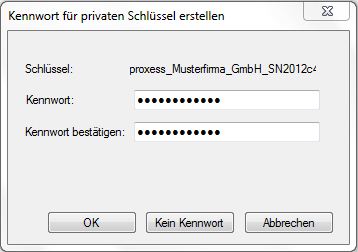
Figure: Entry dialog for the password for the private key
Confirm your input with OK. The protected system certification request is now created and stored in the above output folder.
You will get a confirmation that the process was completed successfully.
Send the created system certification request (req file) to PROXESS via the online form: https://www.PROXESS.de/zertifikatsantrag.html.
After a brief processing time, PROXESS will send you an e-mail with the digitally countersigned system certificate (file with the extension cer). This can be used only in conjunction with your already created private key and can thus be securely transferred by e-mail.
Now you can activate the PROXESS system certificate.
Also see:
